
Job Aid
July 2020
Version 1
Combimeter Reflash Tool Instruction Manual
AFFECTED VEHICLES
| Year | Model | Trim Level |
| 2018-20 | Odyssey | ALL except LX |
| 2019-20 | Passport | ALL except Sport |
| 2019-20 | Pilot | ALL except LX |
INTRODUCTION
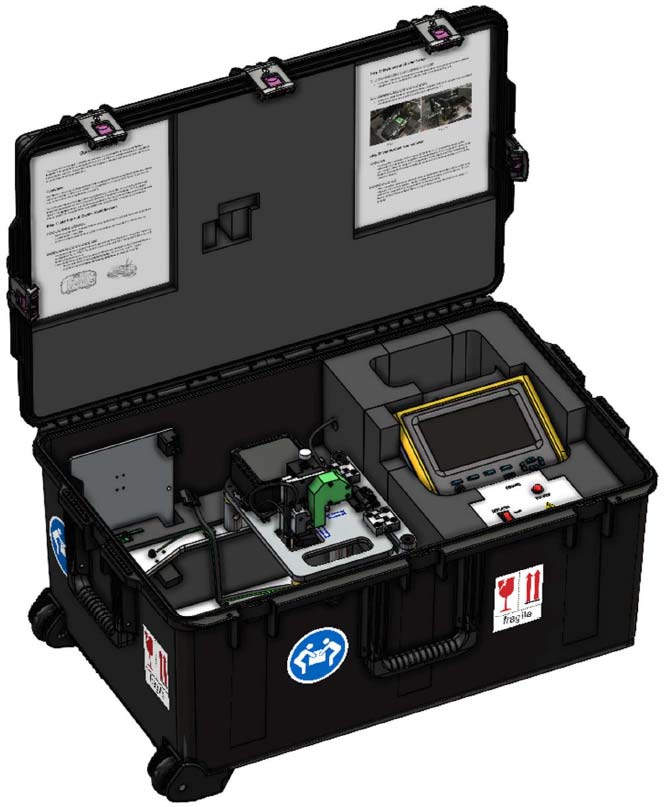
This job aid supports the combimeter reflash tool (T/N 07AAL-THRA100) used in service bulletin 20-047 Noncompliance Recall: Gauge Control Module Software Update. Be sure to review this job aid before using the tool.
SAFETY PRECAUTIONS
NOTICE
The following safety precautions have been supplied by Denso. This information alerts you to potential hazards that could hurt you or others, and cause damage to the tool, the environment, or other property.
- Always observe the following rules. Failure to do so can result in heat generation, fire, or electrical shock.
- Do not disassemble or alter this tool.
- Do not connect this tool to any voltage exceeding its ratings.
Work environment
- Do not work anywhere that water or any other liquid, could come in contact with the tool.
- Ensure the tool is safely secured on a flat surface before carrying out any work.
- Failure to do so could result in an accident.
- Only operate in a clean, well-lit environment.
- Failure to do so could result in an accident.
Check before use
- Inspect each connector for foreign material or damaged, broken, or bent pins.
- Before connecting the power cable between this tool and the source, inspect for damage.
- Before use, make sure all hinges and control knobs properly function.
- Before use, check the reflash connector for signs of abnormal wear. Also check that the connector guide is present within the unit.
- Before using the tool for the first time, make sure it is calibrated. See CALIBRATION PROCEDURE on page 6.
Handling of the product and equipment
- Avoid dropping this tool or subjecting it to a strong impact.
- When connecting any connectors, ensure correct orientation of the connector and gently insert it straight in.
- If the connector is connected in the wrong orientation, or put in or pulled out at the wrong angle, there is a risk of damaging the connector terminal and this may cause malfunctioning of this product.
- When removing any connector, hold the connector body, not the cord.
- Pulling on the cord section can break the lines in the cable over time.
- Do not lift or drag the tool by pulling on the connected power cable. When moving the tool, hold the body of the unit or the integrated handles.
- Do not apply stress to the connector of the product.
- Applying too much force could result in breaking the connector terminal, and this may cause malfunctions.
Usage restrictions
- Use this product only with approved gauge control modules.
- Always check for the proper connector prior to use to ensure you use the correct function.
- When removing the connector cover, be careful not to drop it into the product.
- Do not adjust the connector position while hinged top plate is lowered and the pogo head is down. Doing so will cause damage to the gauge control module.
Storage and maintenance of the product
- Do not expose this product to direct sunlight for long periods of time.
- Do not expose this product to extreme heat.
- Use and store this product in a dry environment.
- Do not use solvents or thinners such as benzine when cleaning.
- Doing so could cause deformation, discoloration, cracking, etc., and malfunctions may result. To clean, wipe gently with diluted neutral detergent on a soft, damp cloth.
Disposal of the product
- Discard this tool or its accessories after its useful life according to local disposal laws.
PARTS LOCATION
General View
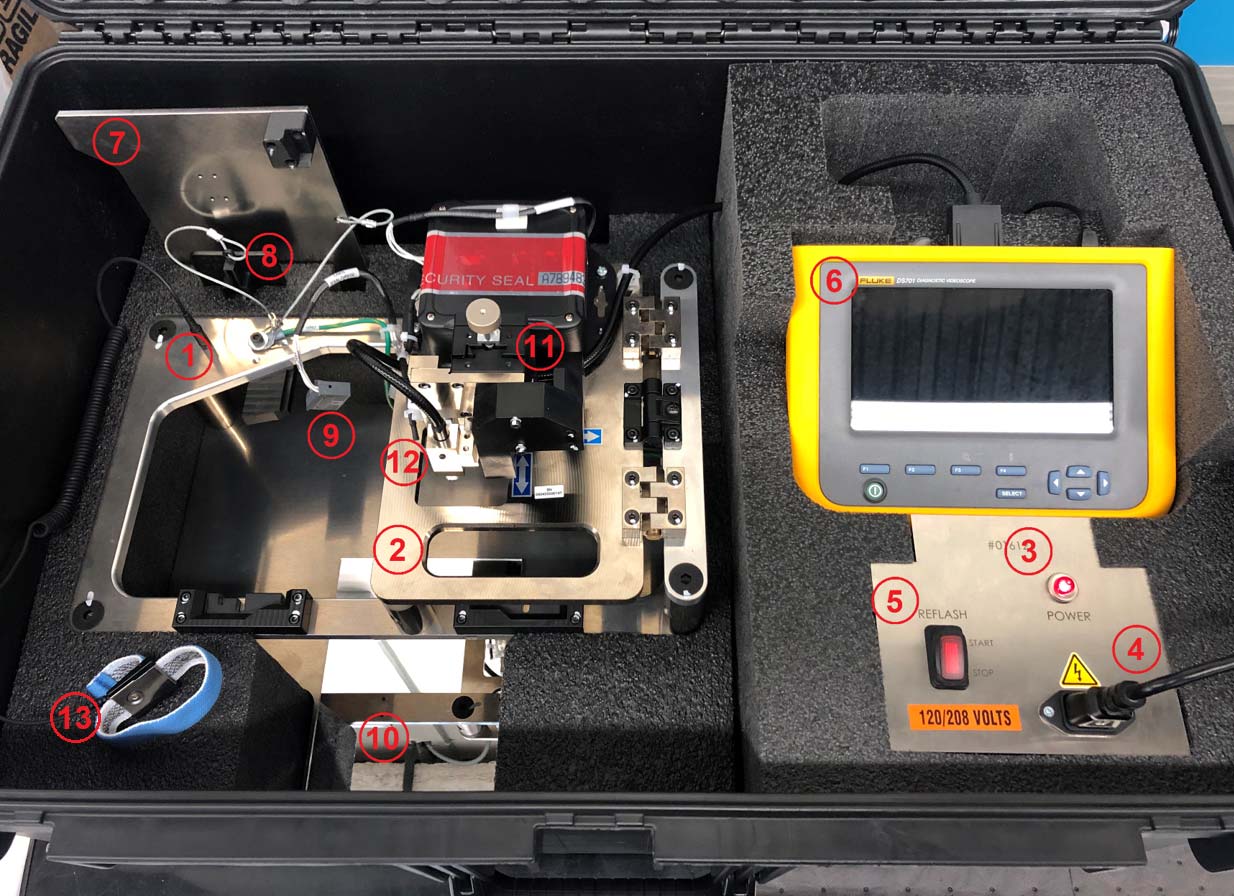
| 1 | Reflash Jig |
| 2 | Hinged Top Plate |
| 3 | Power Indicator |
| 4 | Power Cable |
| 5 | Reflash Switch |
| 6 | Fluke Borescope |
| 7 | Calibration Plate |
| 8 | Connector Adaptor Plate |
| 9 | Cluster Power Supply |
| 10 | Inspection Mirror |
| 11 | Pogo Head Adjustment Assembly |
| 12 | Pogo Head Connector |
| 13 | Grounding Wriststrap |
Fluke Borescope
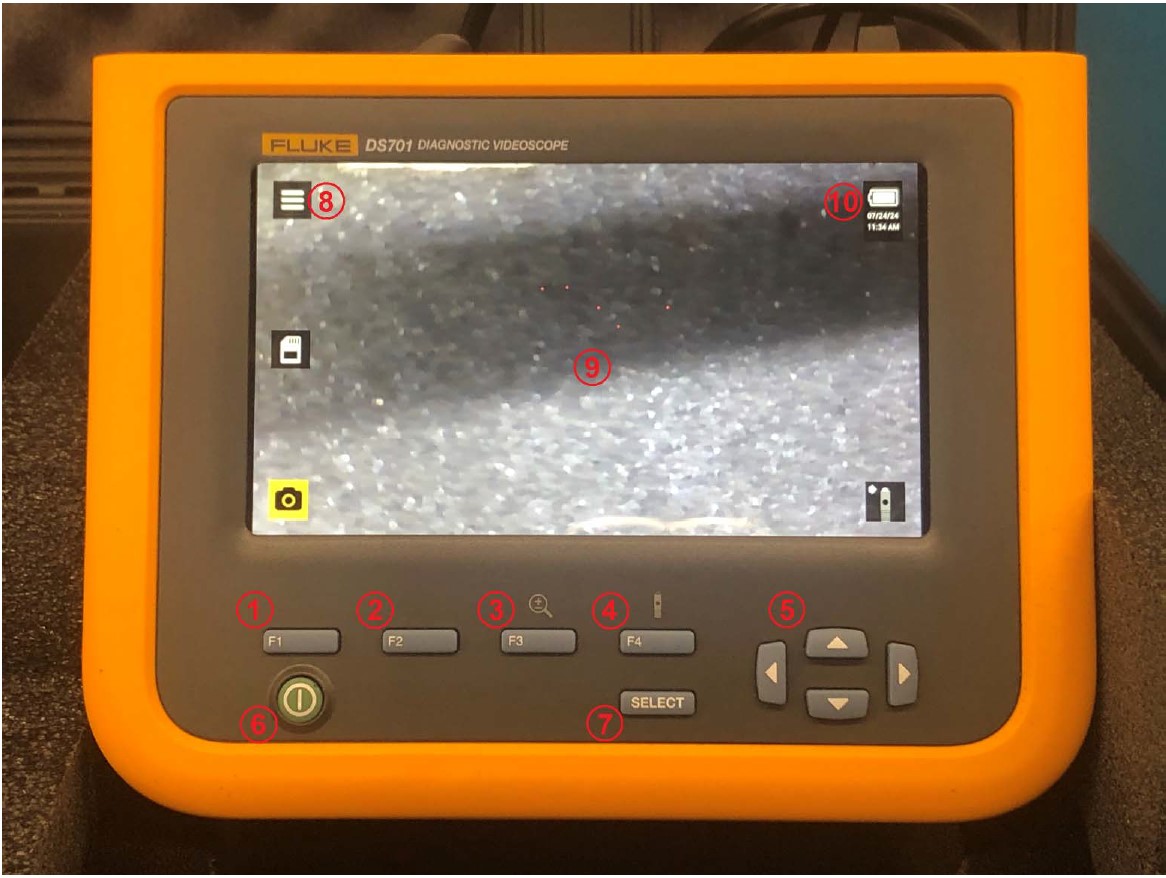
| 1 | F1 Button |
| 2 | F2 Button |
| 3 | F3 Button |
| 4 | F4 Button |
| 5 | Navigation Control Buttons |
| 6 | Power Button |
| 7 | SELECT Button |
| 8 | Menu Indicator |
| 9 | Screen |
| 10 | Battery Charge Level |
Pogo Head Adjustment Assembly
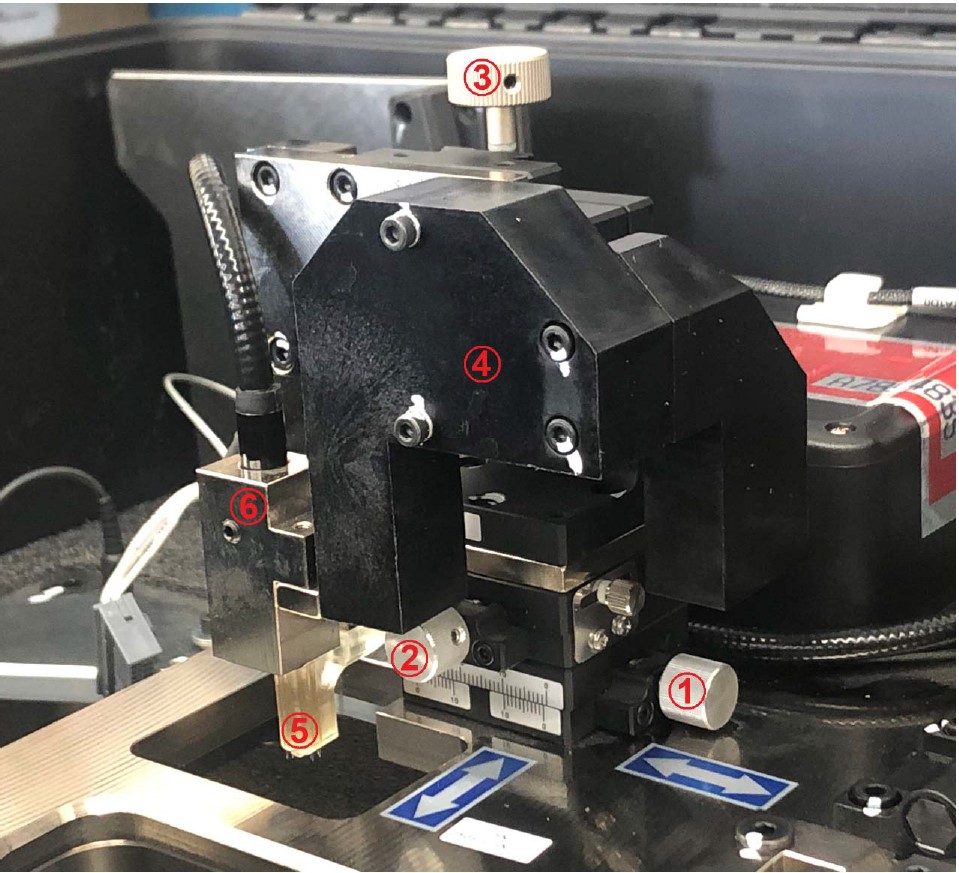
| 1 | X-Axis (Left/Right) Control Knob |
| 2 | Y-Axis (Forward/Backward) Control Knob |
| 3 | Z-Axis (Up/Down) Control Knob |
| 4 | Safety Shield |
| 5 | Pogo Head |
| 6 | Fluke Borescope Camera Head |
CALIBRATION PROCEDURE
The combimeter reflash tool must be calibrated when it first arrives at your dealership, and again if the reflash procedure continues to fail.
- Begin by powering on the combimeter reflash tool as normal, and raising the pogo head all the way up by turning the Z-axis control knob clockwise.
- Remove the master calibration plate from the case, and fully seat it into the jig. Fully lower the hinged top plate.
- Slowly lower the pogo head by turning the Z-axis control knob counterclockwise until you feel resistance or it contacts the calibration plate.
NOTICE
If the pogo head does not fit into the opening in the calibration plate, do not force the pogo head into the opening, as it may damage the tool. Call the Honda Special Tools hotline at (800) 346-6327 for assistance.
- Raise the pogo head, and adjust the X-axis and Y-axis control knobs to move the head closer to the center of the tooling. You should be moving the head away from the area where it contacted the calibration plate.
- Repeat steps 3 and 4 until the head travels into the tooling on the calibration plate without resistance, dragging, or contact. Leave the pogo head down.
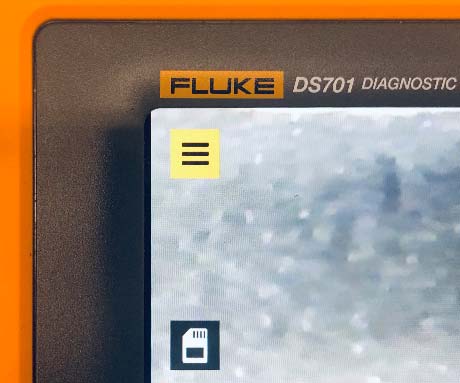
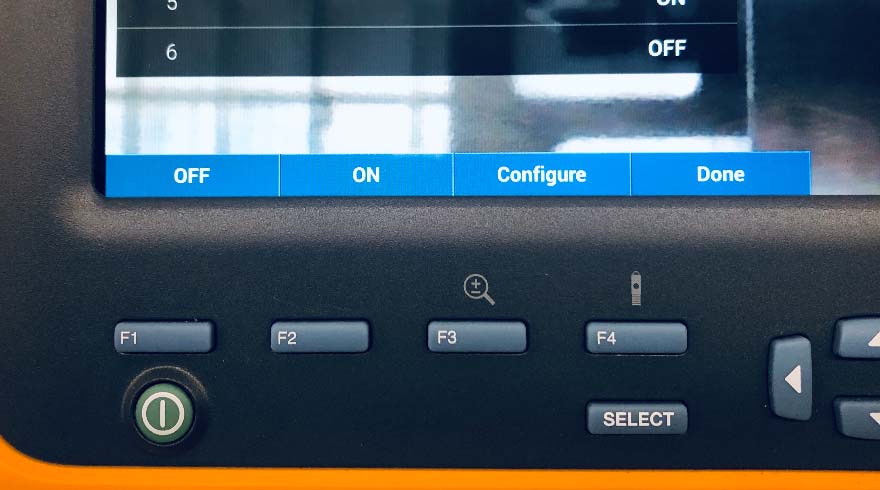
- On the Fluke borescope, use the navigation control buttons to highlight the menu indicator at the top left corner of the screen.
- Press the SELECT button to open the menu at the bottom left of the screen.
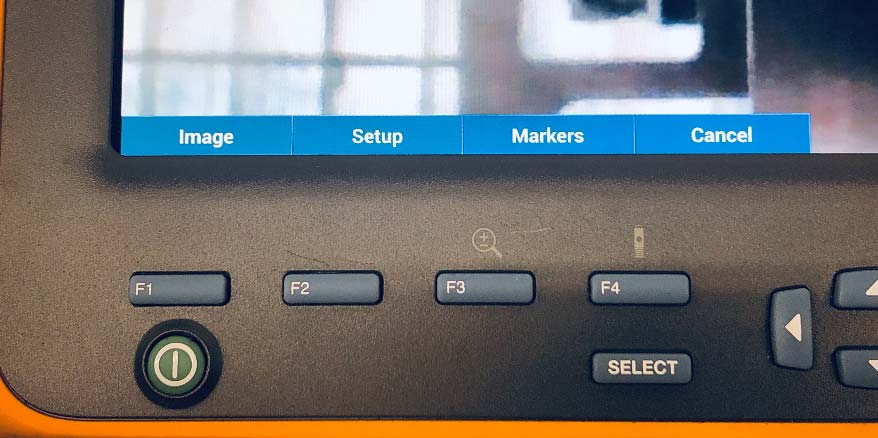
- Press the F3 button to select Markers.
- In the MARKERS MENU, use the navigation control buttons to highlight Configure Markers.
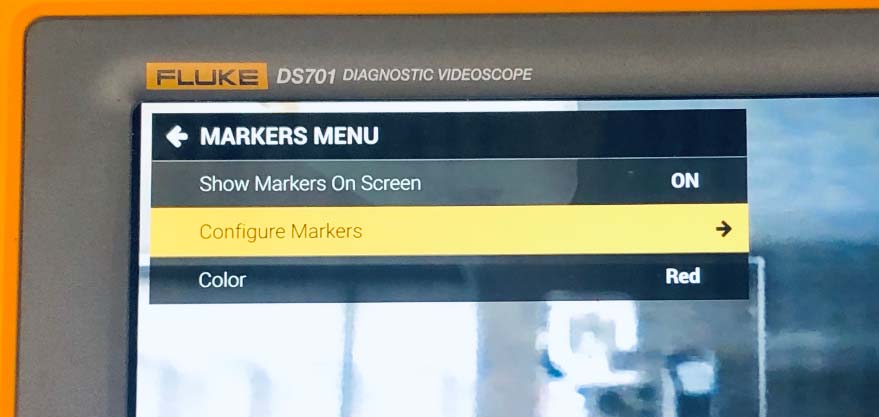
- Press the SELECT button or the right navigation control button to select Configure Markers.
- In the CONFIGURE MARKER menu, use the navigation control buttons to highlight marker 1.
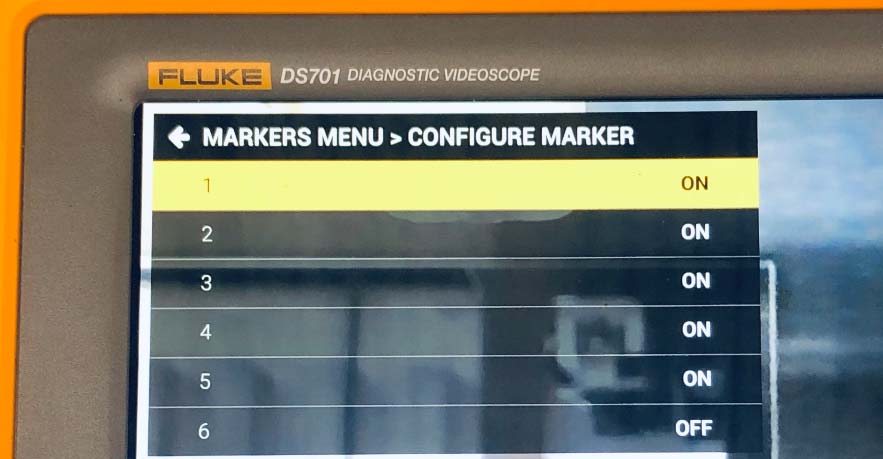
- Press the F3 button to configure marker 1
- Use the navigation control buttons to position the red marker over the hole in the calibration plate.
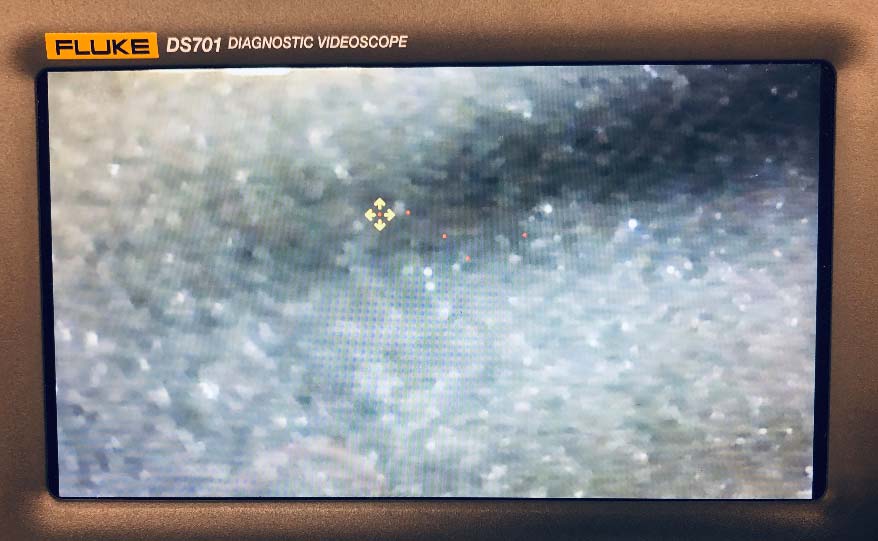
- Press the F4 button to go back to the CONFIGURE MARKER menu, then select the next marker to configure.
- Repeat steps 11 thru 14 until all of the markers are configured.
- When all of the markers have been configured, press the F4 button to select Done until you are back at the main screen to complete the calibration.
BASIC OPERATION
Setup / Powering On
- Open the case, and remove the power cord from its storage area. Plug the power cord into the receptacle on the control panel. If the unit does not power on, check the appropriate breaker in your facilities breaker box.
- Press the green Power button on the Fluke display, and wait for it to fully power up.
NOTE
If the Fluke display does not power up, or is showing a low battery sign on the screen, wait 1 hour with the unit plugged in to allow the internal battery to charge.
Identifying the Connector Type
Use a small snipping tool to remove the access cover on the back of the gauge control module.
NOTICE
Do not let the access cover fall into the gauge control module. The loose access cover could result in a rattle or buzzing noise, and the difficult recovery of the cover could lead to damage to the module.
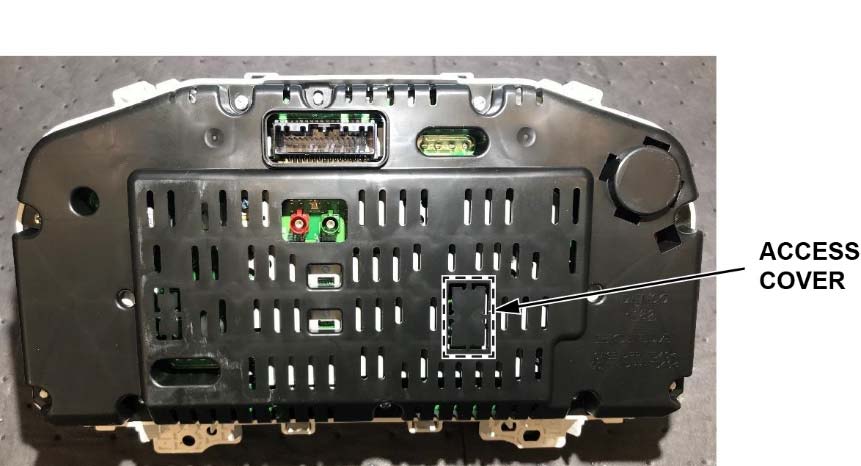
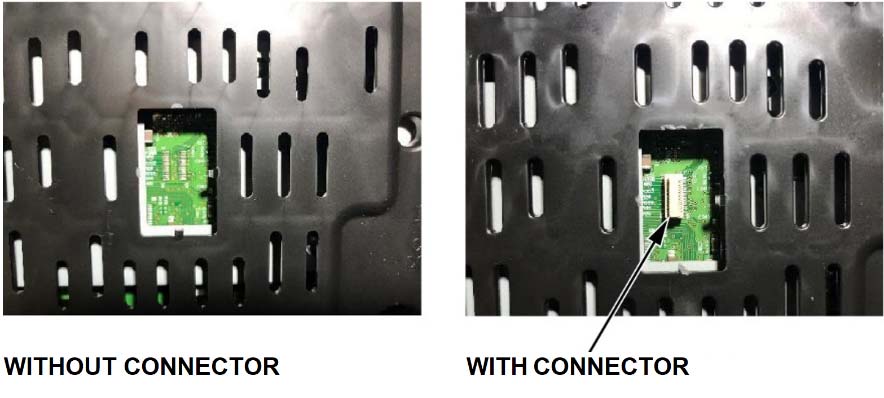
NOTE
Some gauge control modules have a connector on the circuit board and some do not.
Reflashing the Gauge Control Module
To reflash the gauge control module, refer to service bulletin 20-047 Noncompliance Recall: Gauge Control Module Software Update.
TROUBLESHOOTING
General Tool Troubleshooting
| Problem | Cause | Solution |
| Power indicator is not on | Power cord is disconnected or damaged | Check cord for damage and proper engagement with the power source (wall outlet) and product. |
| Power indicator is on, but Fluke borescope is not powering on | Battery within Fluke borescope is exhausted | Leave the unit plugged in, and wait about 1 hour to charge. |
| Fluke borescope displays battery icon
| Battery within Fluke borescope is exhausted | Leave the unit plugged in, and wait about 1 hour to charge. |
| Fluke screen is dim or turned off | Fluke backlight setting is too low or off | Press the backlight button (F4) to open the backlight setting, and use the arrows to increase brightness. |
| Fluke screen is too bright | Fluke backlight setting is too high | Press the backlight button (F4) to open the backlight setting, and use the arrows to decrease brightness. |
Reflashing Gauge Control Modules with a Connector
| Problem | Cause | Solution |
| Gauge control module is booting normally instead of reflash sequencing | Connection between gauge control module and combimeter reflash tool is broken | Make sure the power and reflash cables are properly connected to the gauge control module. Also, make sure the reflash adaptor is properly in place. |
| Gauge control module is not turning on during reflash process |
Reflashing Gauge Control Modules without a Connector
| Problem | Cause | Solution |
| Gauge control module is booting normally instead of reflash sequencing | Probe head is misaligned or damaged | 1. Raise the pogo head, and try to align the probe head. Try the flash process again.
2. If the problem continues, inspect the probe head for damage, such as a bent or missing pin. 3. If the problem still continues, recalibrate the pogo head position. See Calibration Procedure on page 9. |
| Gauge control module is not turning on during reflash process | Gauge control module power cable is ajar or damaged | Verify the power connector is fully seated into the gauge control module. |
NOTE
If you need further assistance, call the Honda Special Tools hotline at (800) 346-6327.
REPLACEMENT COMPONENTS
| Part Name | Part Number | Description |
| Pogo head, Reflash | 07AAL-THRA110 | Pogo head for reflashing non-populated GDC meters |
| Cable, C13 to Type B | 07AAL-THRA130 | Power Cable (110 V) |
| Display, Borescope | 07AAL-THRA160 | Fluke main display and case with buttons |
| Cable, Borescope Power | 07AAL-THRA170 | Power cable for Fluke borescope |
| Calibration, Pogo head | 07AAL-THRA180 | Calibration plate for aligning pogo head for mastering of borescope |
| Wriststrap, ESD Ground | 07AAL-THRA190 | ESD wriststrap and cable |
| Sheet, Hole Seal | 07AAL-THRA120 | Felt to apply to cover reflash hole (service part with size) |
| Hinge, Adjustable Torqu | 07AAL-THRA1B0 | Tension hinge |
| Card, SMART Reflash | 07AAL-THRA1D0 | Cable from SMART reflash unit to adapter board |
| Card, SMART Reflash | 07AAL-THRA1E0 | Adapter board and connection to meter/cable |
| Alignment, GDC | 07AAL-THRA1F0 | Plastic alignment tool for adapter board |
| Sub-cable, Combimeter | 07AAL-THRA150 | 32 pin meter connector |
| Unit, SMART Reflash | 07AAL-THRA140 | SMART Reflash Unit (with SD card software installed and cyber security measures in place) |
NOTE
To order replacement parts, call the Honda Special Tools hotline at (800) 346-6327.
TOOL SPECIFICATIONS
| Item | Specification | |
| Size | 31.3 in. (L) x 20.4 in. (W) x 13.8 in. (H)
79.5 cm (L) x 51.8 cm (W) x 35.1 cm (H) | |
| Weight | Approx. 59 lbs.(22.7 kg) | |
| Operating Environment | Operating Temperature | 32 °F to 122 °F (0 °C to 50 °C) |
| Storage Temperature | -4 °F to 158 °F (-20 °C to 70 °C) | |
| Operating Humidity | 10 to 90% (No condensation) | |
| Main Power Supply Voltage | 95 to 264 VAC at 47 to 63 Hz | |
| Power Consumption | Normal Operation 50W (120 VAC)
Max. 1.2kW (120 VAC) | |
| Gauge Control Module Output Voltage | 11-13 VDC | |
| Fluke Borescope Input Voltage | 5.0VDC | |
STORAGE
This tool should be stored in accordance with the following:
- Power the unit down fully using the power button on the Fluke borescope and unplugging the power supply cable.
- The Z-axis control knob should be lowered down approximately 3 full rotations from its highest position.
- If it is too high, you risk the case lid damaging it when being closed.
- If it is too low and is not raised prior to the insertion of a gauge control module when next used, the head will collide with the gauge control module, causing damage to the head.
- Make sure there is no gauge control module in the reflash jig when the hinged plate is lowered.
- The calibration plate connector alignment tool, gauge control module power supply cable, and power cable should be stored in their respective storage locations.
- Close the case lid and latch all points around the lid.
- Store the closed case in a cool, dry area, away from direct sunlight.
END
Reprogramming
i-HDS Diagnostic Software and J2534 Reprogramming Software
Honda J2534 Pass-Thru User Guide
Honda J2534 Pass-Thru Software Download
i-HDS Diagnostic Software and J2534 Reprogramming Software
American Honda Motor Co., Inc. ("Honda") offers the i-HDS (Honda Diagnostic System) software suite for the diagnosis and repair of electronic systems on Honda and Acura automobiles, and for the reprogramming of electronic control units (including, but not limited to, ECMs and PCMs). This software provides access to all Honda and Acura vehicle systems (access to the immobilizer security system requires a Security Professional level software subscription and Vehicle Security Professional [VSP] registration with NASTF). To use the i-HDS software, you need to purchase one of our convenient subscription options. In addition, you will need a pass-thru Vehicle Communication Device (VCI) that is compliant with SAE J2534-1 and J2534-2 in order to communicate with the vehicle
Vehicle Communication Interfaces (VCI)
The i-HDS software supports the use of a generic pass-thru VCI that is compliant with SAE J2534-1 and J2534-2. However, Honda recommends the Denso DST-i or the Bosch MVCI for use on Honda and Acura vehicles, as Honda has worked closely with these manufacturers to ensure their hardware and our software interact safely and within the J2534-1 and -2 specifications, for both diagnostics and reprogramming. If you choose to use a generic VCI, please carefully consider the customer and technical support options you will receive from your chosen device supplier. Honda does not provide technical or customer support for generic VCI devices.
The VCI Application Table below lists devices that either are approved and supported by Honda or are known to have completed and passed an independent, exhaustive validation program with our i-HDS software suite.
| VCI Name | Manufacturer | Version Information | Notes | |
|---|---|---|---|---|
| Firmware | J2534 API | |||
| DST-i | DENSO | 2.02.0002* | 04.04 | This is the current generation VCI used by Honda and Acura dealers. Honda routinely validates the functionality and provides customer support for this device. |
| DST-nano | DENSO | 2.02.0002* | 04.04 | This is the current generation VCI used by Honda Canada Inc. Honda and Acura dealers. Honda routinely validates the functionality and provides customer support for this device. |
| MVCI | Bosch | 3.01.60* | 04.04 | This is the previous generation VCI used by Honda and Acura dealers. Honda routinely validates the functionality and provides customer support for this device. |
| MongoosePro Honda | Drew Technologies | 1.9.5** | 04.04 | This company has completed an independent i-HDS validation and claims it to function with the i-HDS software. Honda does not provide ongoing validation, nor customer support for this device. |
| d-briDGe Pro | Dearborn Group | 3.303** | 04.04 | This company has completed an independent i-HDS validation and claims it to function with the i-HDS software. Honda does not provide ongoing validation, nor customer support for this device. |
* These versions may have been superseded. Honda provides the latest supported versions to current i-HDS subscribers.
** Version used in validation program. See Terms and Conditions and Important Notice Regarding Reprogramming below for more details.
Reprogramming with the J2534 Rewrite Application in i-HDS
Included in the i-HDS software suite is a new reprogramming application called J2534 Rewrite. This application is made available to all subscribers of the i-HDS software suite and replaces the previous generation software, J2534 Honda Pass-thru Reprogramming Software.
This new application is compatible with generic VCIs that comply with SAE J2534. It must be used to reprogram any Honda/Acura vehicle equipped with ECUs that support reprogramming. Refer to the table below for legacy applicability for the programming of ECMs and PCMs. Though system dependent, late-model vehicles may be equipped with other ECUs that support reprogramming as well, e.g. ABS or VSA. J2534 Rewrite must be used to reprogram these control modules, as instructed in an applicable service bulletin.
As shown in this table, not all legacy Honda/Acura models are equipped with a reprogrammable ECM/PCM. Furthermore, all 2007 and later models not listed in the table are fully supported with this application.
DST-i Information:
MVCI Information:

- J2534 Pass-Thru Programmer: TOPDON RLink J2534 is an advanced diagnostic and reprogramming tool that support all J2534 protocols, as well as D-PDU, CAN-FD and DoIP, ensuring compatibility with a wide range of modern vehicles. It offers extensive versatility with support for over 18 major automotive brands, including Chrysler, Ford, GM, Nissan, Toyota, Honda, Subaru, Land Rover/Jaguar, Volvo, Wuling, Volkswagen/Audi, Mercedes-Benz, and BMW. NOTE: Not compatible with Ford IDS diagnostic software
- All-in-One OEM Diagnostics: This J2534 ECU programming tool elevates your automotive repair capabilities to new heights by delivering complete OEM diagnosis. Boasting comprehensive full-system diagnostics, intuitive repair guides, advanced ECU programming and coding, common reset services, a vast library of repair information and more, this all-in-one solution empowers technicians to effortlessly tackle complex vehicle issues with ease. *Not compatible with 24V vehicles
- Proven Performance You Can Trust: Backed by over 10000 real vehicle tests and benefit from a wealth of practical experience, this OEM reprogramming tool guarantees stable and exceptional performance. Supported by TOPDON's dedicated technical experts with in-depth knowledge of both auto repair and J2534 Pass-Thru programming, the RLink J2534 provides prompt and professional assistance, ensuring a smooth setup and reliable compatibility
- Integrated Excellence, Always Up-to-Date: Featuring the exclusive RLink Platform to provide a streamlined experience with one-click driver installation and management, ensuring flawless integration with your OE software, maintaining the original performance quality. The built-in operation guide makes mastering OE software quick and easy, so you can get started right away. Plus, with lifetime free updates, your diagnostics will stay current with the latest drivers and innovations
- Efficiency Meets Versatility: Engineered to support three CAN channels simultaneously - CAN FD and CAN-CC included, giving you the edge in fast troubleshooting. To perfectly synchronized with the OE software, please diagnose with active subscriptions and make sure your computer system is running a compatible 64-bit Windows version (7, 8, 10 or later) to fully leverage the power of RLink J2534. *We don't provide extra OE software

- Advanced VCI Box, Industry-leading J2534 Pass-Thru Technology: This J2534 Pass-Thru Programmer is designed espically for technicians, independent shop owners, and DIY enthusiasts, enables fast, reliable computer-based programming. It supports all J2534 protocols—including the latest DoIP and CAN FD—ensuring full compatibility with both legacy and next-generation vehicles.
- High-Speed OEM-Level Diagnostics & Programming: Unlock true OEM functionality with comprehensive system diagnostics, guided troubleshooting, coding, adaptations, resets, and programming—all designed to slash repair time. This all-in-one tool eliminates the need for multiple OEM devices, boosting efficiency and cutting costs. Equipped with High-Speed USB, it delivers 10x more data per second than competing solutions
- Coverage for 17 Car Brands & Ultra Reliability: Works seamlessly for Chrysler, for Ford(Forscan), for GM, for Nissan, for Toyota, for Honda, for Subaru(SSM4), for Land Rover/Jaguar, for Volvo, for Wuling, for Volkswagen, for Mercedes-Benz, and for BMW. Backed by over 10000 real vehicle tests and benefit from a wealth of practical experience, this OEM reprogramming tool guarantees stable and exceptional performance
- User-Friendly RLink Platform & Expert Support: TOPDON’s proprietary driver management platform offers a clean interface and lifetime free updates. Access a rich library of real-world case studies to stay ahead of the curve. Backed by a support team with 10+ years of J2534 and automotive repair experience, we provide one-on-one assistance to resolve any technical issue.
- 6.6 ft USB-C Cable & Portable Storage Case: The RLink J2534 diagnostic tool features a 6.6ft USB 2.0 Cable and a 1.2 ft OBDII Extension Cable, allows to connection your computer easily outside the vehicle. The included handled carry case offers easy portability, storage, and hanging options—keeping your gear clean and ready to go, anywhere.
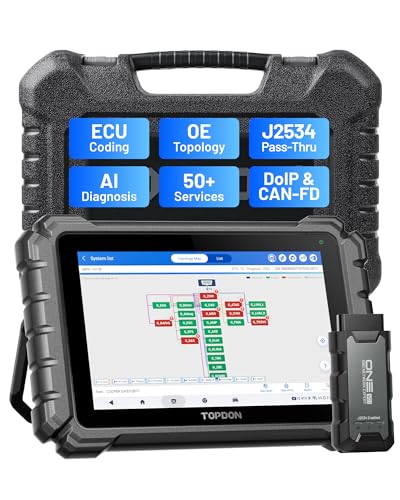
- Dual WiFi & 10.1" Touchscreen: Provides a stable, high-speed wireless link 3x faster than bluetooth, and a responsive, professional interface. Topdon ONE obd2 scanner diagnostic tool ensures smooth, non-lagging diagnostic scan, boosting mechanic efficiency
- J2534 Pass-Thru Support: The included ONE VCI supports the J2534 standard, allowing it to function as a pass-thru device when paired with OEM diagnostic software.Through TOPDON’s RLink platform, technicians can perform dealer-level coding, expanding in-house capabilities without investing in multiple factory automotive scan tools
- OE Topology Mapping: Visualize the vehicle’s ECU network exactly as it’s built.Zoom, pan, and highlight specific modules to pinpoint component issues with precision.Topology mapping displays real-time communication between modules
- 50+ Service Functions: Covers high-demand services like ADAS calibration, DPF regen, TPMS reset, ABS bleed, and throttle adaptation.Expands your service menu, allows you to charge premium rates, and turns away zero jobs due to lack of tooling. Vehicle-specific functionality may vary
- Advaned ECU Coding: 10 of the most serviced brands in North America, including full ECU coding and flash hidden support for BMW, VW, Au-di, Benz, Porsche, Toyota, Ni ssan and more. Enables module replacement, feature customization, and personal settings with automatic backup or restore.Lets your shop safely offer high-margin customization services, attracting more customers and boosting profit

- [J2534 Pass-Thru Programmer] - TOPDON RLink J2534 is engineered for professional technicians, delivering OEM diagnostic and reprogramming capabilities. It supports all J2534 protocols, CAN-FD, DoIP, D-PDU. Compatible with 17 vehicle brands—such as Chrysler, Ford, GM, KIA, Hyundai, Nissan, Toyota, Honda, Subaru, Mitsubishi, MAZDA, Land Rover/Jaguar, Volvo, Volkswagen/Audi, Mercedes-Benz, and BMW. RLink J2534 can help reduce the cost of purchasing equipment from different brands.
- [All-in-One OEM Reprogramming and Diagnostics] - When seamlessly integrated with OEM diagnostic software, this dongle enables you to perform a wide range of functions, including ECU programming and coding, DTC reading and clearing, active tests, component matching, adaptations, rewriting, guided troubleshooting, and more. This all-in-one tool eliminates the need for multiple OEM devices, significantly boosting work efficiency.
- [Tested, Trusted, and Proven for Accuracy] - TOPDON RLink J2534 is renowned for its reliability, having successfully completed over 10,000 real-vehicle tests. The wealth of data and hands-on experience behind it ensures consistent performance and accurate results. You can trust this tool to deliver optimal performance.
- [One-Click Installation, Continuous Updates] - The exclusive TOPDON RLink platform streamlines installation with a one-click driver setup, allowing you to quickly access OEM software for diagnostic and reprogramming tasks. With lifetime free updates, your RLink J2534 stays current without any additional cost, ensuring reliable performance for the long term. *We don't provide extra OE software.
- [Works with Windows Compatibility and OEM Software Subscription] - The RLink J2534 supports three CAN channels - including CAN FD and CAN-CC, providing advantages in the process of rapid troubleshooting. Compatible with Windows 7, 8 and 10 (64-bit) and higher versions of the system. For full functionality, an active OEM software subscription is required for each supported vehicle brand. Please note that the dongle does not include OEM software, which must be purchased separately to access brand-specific diagnostic and reprogramming features.

- 【J2534 Pass-Thru Device】 This budget-friendly J2534 pass-thru device delivers OEM diagnostics and reprogramming capabilities for dealerships, repair shops and automotive DIY enthuisasts, enables you diagnose, program and repair the vehicles more efficiently and precisely. Supporting J2534, D-PDU, CAN-FD and DoIP, this J2534 passthru tool ensures wide vehicle coverage. It's compatible with OE software application, ensuring seamless integration and original performance quality
- 【All-in-One Diagnostic Tool】 Simplify your workflow and tackle the complex diagnostics and repairs with confidence! This J2534 passthrough tool provides full system diagnosis, bi-directional control, maintenance reset services, ECU programming and ECU coding to run advanced diagnostics and programming. Equipped with the specialized platform, this J2534 pass-thru tool is fully compatible with OE software that helps technicians confidently handle complicated vehicle repair issues
- 【J2534 Diagnostic Tool】 The Tabscan J2534 pass-thru device is built with a dedicated platform, making it ideal for both professional and personal use. Simply download the driver for your ford vehicle within the platform—ensuring only one driver is installed at a time. Then connect the device to your vehicle’s OBD2 port and link it to your computer using the included USB A to USB C cable. Finally launch your OE software, select Tabscan J2534 VCI as interface, and begin diagnose and program
- 【Universal Compatibility】 Tabscan J2534 reprogramming tool is designed to be compatible with Ford vehicles for advanced diagnostics and programming. It supports J2534 protocols, along with D-PDU, CAN-FD and DoIP, ensuring seamless connectivity with older or modern vehicles. This J2534 diagnostic tool only works with computer running on windows 7/10/11. Vehicle compatibility varies by model or year, please confirm with us before purchase. Note: It's not compatible with 24V vehicles
- 【Professional Technical Support】 Tabscan J2534 pass-thru device provides a stable and seamless connection between your vehicle and computer for diagnostics, programming, and coding. But that's not all—we go beyond hardware. Our dedicated technical support team brings deep expertise in automotive diagnostics and programming. Whether you need help with setup, troubleshooting or latest diagnostic resources and upgrades, we provide fast, professional and reliable support every step of the way

- ALL OF THE J2534 PROTOCOLS - This single unit has all of the protocols you need for your OEM J2534 reprogramming and diagnostics including the latest in DoIP and CanFD
- J2534 TECHNICAL SUPPORT - FREE for the life of the tool. Staffed by technicians who understand vehicle repair and J2534 Pass‑thru
- TOOLBOX WITH OEM APPLICATION DESCRIPTIONS - educational video tutorials and real-time news – Giving you the confidence and up-to-date knowledge to get the job done
- J2534 v05.00 API - The newest version of J2534 to give you the latest in pass-thru technology
- FUTURE PROOF WITH 4 CAN CHANNELS - Going beyond the 3 required by select Chrysler/FCA models, CarDAQ-Plus 3 also provides a 4th to meet the needs of future OEM applications
This product presentation was made with AAWP plugin.