A24-081
May 31, 2024
Version 1
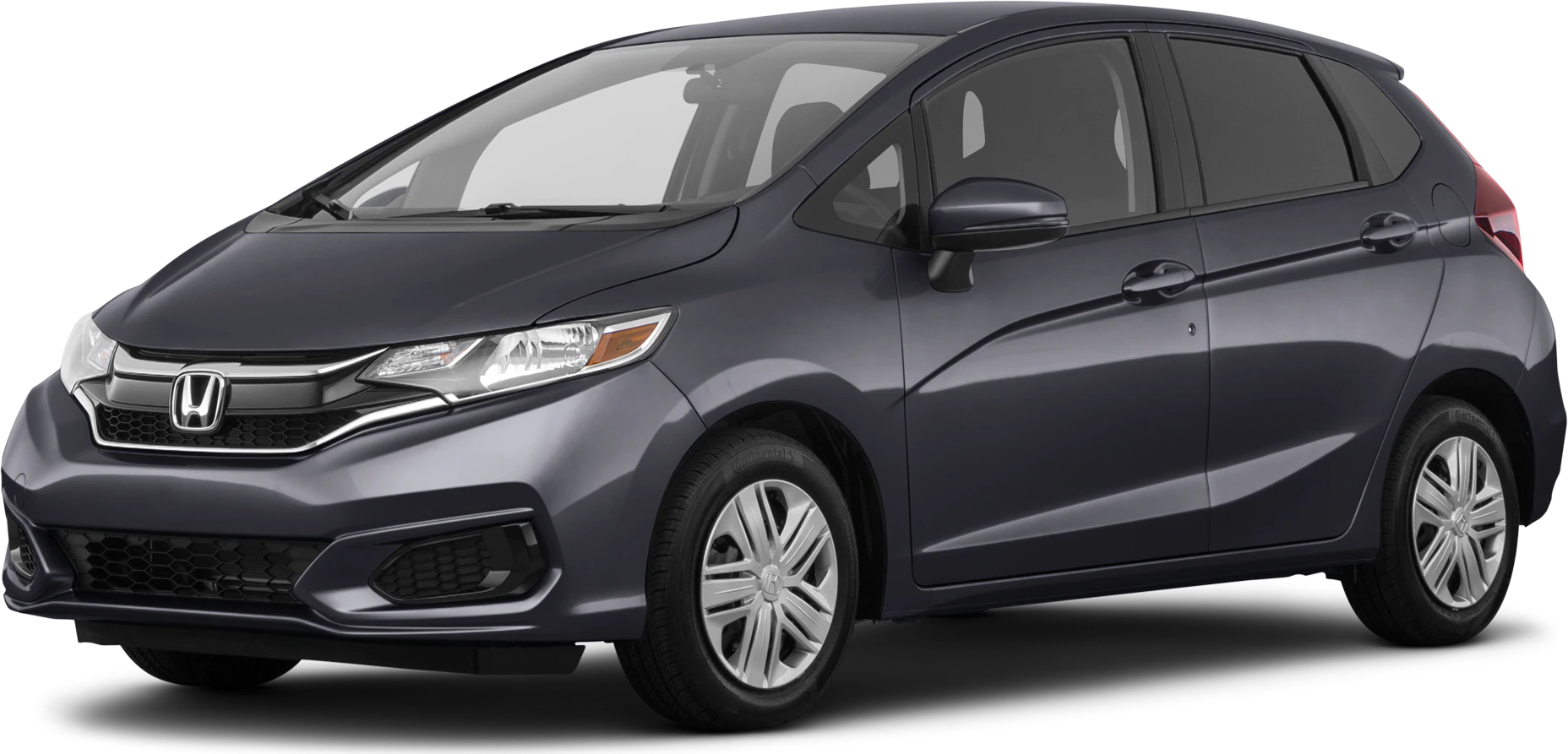
Safety Recall: 2018-20 Fit Audio Unit Improved Software Update
AFFECTED VEHICLES
| Year | Model | Trim Level | VIN Range |
| 2018–20 | Fit (with key ignition switch ONLY) | Sport | Check the iN VIN status inquiry for eligibility. |
BACKGROUND
Due to an improper hardware circuit configuration, if the battery state of charge drops below 9 volts during cranking this may cause logic and/or timing mismatch in the display audio unit resulting in a blank display condition. In certain situations, the rearview camera may not display when shifting to reverse, increasing the risk of a back-up collision or injury. This is noncompliant with Federal Motor Vehicle Safety Standards.
NOTE: Some vehicles in this action may have been repaired using the previous software from Service Bulletin 23-005 Safety Recall: 2018–20 Fit Audio Unit Software Update. This repair is required to fix a possible concern with the rear-view camera. All units in this campaign must receive the improved software.
CUSTOMER NOTIFICATION
Owners of affected vehicles will be sent a notification of this safety recall. Do an iN VIN status inquiry to verify eligibility.
Some vehicles affected by this campaign may be in your new or used vehicle inventory.
Failure to repair a vehicle subject to a recall or campaign may subject your dealership to claims or lawsuits from the customer or anyone else harmed as a result of such failure. To see if a vehicle in inventory is affected by this safety recall, do a VIN status inquiry before selling it.
CORRECTIVE ACTION
Update the audio unit system with the latest software.
NOTE: If you have USB drives with earlier versions of the software loaded, you will need to erase those USB drives.
REPAIR PROCEDURE
- Make sure there are no devices (USB flash drives, smartphones, etc.) connected to the USB port.
- Connect a Midtronics GR8-1100P AST in Power Supply Mode, or the Midtronics DCA-8000 Dynamic Diagnostic Charging System in Reflash Mode, or the Associated Equipment Corporation ESS6100 100A Smart Charger in Power Supply Mode | DIAG+, connected directly to the vehicle’s 12-volt battery, and leave it connected during the entire update procedure to maintain constant voltage.
- Apply the parking brake to keep the headlights off during the procedure.
- Turn the ignition switch to ON (II).
- The disclaimer screen should display, then cycle to the home screen.
NOTE: If you see this screen, press and hold DAY/NIGHT and HOME at the same time to bypass this screen.
- From the HOME screen press and hold the following buttons, in the sequence shown, to enter diagnostic mode,
(1)MENU > (2)DAY/NIGHT > (3)VOL AUDIO power knob.
NOTE:
- Press and hold the buttons in the exact numbered sequence shown to prevent unwanted system reboot.
- Make sure there are no devices (ISB flash drives, smartphones, etc.) installed in the USB port.
- Remove any gloves before doing the button push and hold sequence. Not doing so may cause the MENU button to not respond.
- Select Detail Information & Settings.
NOTE:
- If the H logo appears when doing the (1)MENU > (2)DAY/NIGHT > (3)VOL AUDIO power knob push and hold sequence:
- Do not cycle the ignition switch.
- Wait 3 minutes and the unit will return to the disclaimer screen shown in step 4.
- If the screen goes blank when doing the (1)MENU > (2)DAY/NIGHT > (3)VOL AUDIO power knob push and hold sequence:
- Do not cycle the ignition switch.
- Press the DAY/NIGHT button to return to the HOME screen.
- Select the scroll down arrow.
- Select Version.
- Confirm the current software version.
- Turn the ignition switch to OFF (0).
- From your computer’s desktop, open Honda Firmware Downloader. Refer to job aid Honda Firmware Downloader for additional information. Make sure to use an empty USB flash drive the is formatted to FAT 32.
NOTE: If you have USB drives with earlier versions of the software you will need to erase the USB drives.
- In the Service Bulletin field, refer to the table below and enter the appropriate Honda Firmware Downloader Service Bulletin Number that is associated with the vehicle software version on the vehicle you are working on. Then, enter the vehicle’s VIN into the VIN field.
NOTE:
- This is very important as there are different update software versions depending on the original, or the first update audio unit software version.
- If you have USB drives with the first update software version loaded, you will need to erase the USB drives.
- The Service Bulletin and VIN fields must be entered in ALL CAPS.
| VEHICLE ORIGINAL SOFTWARE VERSION | FIRST UPDATE SOFTWARE VERSION | HONDA FIRMWARE DOWNLOADER SERVICE BULLETIN NUMBER | LASTEST UPDATE SOFTWARE VERSION | ||
| FIT | 2018 | 30.10.61 30.10.67 | 30.10.68 | 24F081 | 30.10.70 |
| 2019-2020 | 30.10.73 | 30.10.78 | 24G081 | 30.10.80 | |
| 2019-2020 | 40.10.74 | 40.10.79 | 24H081 | 40.10.83 |
- Select the download icon.
NOTE: The software download may take up to 15 minutes depending on the size of the file.
- Once the download is complete, return to the vehicle.
NOTE: If at any time during the update process a TIMEOUT err or UNDEF err message appears, check the USB flash drive for damage, or use a different one.
- Turn the ignition switch to ON (II).
NOTE:
- Make sure there are no devices (USB flash drives, smartphones, etc.) installed in the USB port.
- Connect a fully charged battery jumper to the vehicle and leave it connected during the entire update procedure to maintain constant voltage.
- Apply the parking brake to keep the headlights off during the procedure.
- The disclaimer screen should display, then cycle to the home screen.
NOTE: If you see this screen, press and hold DAY/NIGHT and HOME at the same time to bypass this screen.
- Select the HOME screen.
- Insert the USB flash drive into the vehicle USB port.
NOTE Once the software update begins, do not remove the USB flash drive or the unit may be damaged.
- Software update pop up will display.
NOTE:
- Make sure the displayed current and new software versions are correct, then select Yes.
- If this pop up does not display, recheck the loaded software version on the USB flash drive.
- If the current and new software versions are the same, the system is already up to date.
- If the USB flash drive is removed before selecting Yes or No, an error message will display.
- The system will reboot and copy the software files. This process will take about 5 minutes and the system will reboot multiple times.
NOTE:
- The screens shown below will cycle and appear multiple times (approximately 4 to 5 times). Do not turn off the vehicle or remove the USB flash drive until the update is complete or the unit may be damaged.
- If power is lost during this update procedure, do not remove the USB flash drive. Turn the ignition switch to ON (II) and the H logo will appear for about 5 minutes. The unit will restart the update procedure on its own.
- If an error message appears, turn the ignition switch to OFF (0), remove the USB flash drive, then turn the ignition switch to ON (II) and continue from step 16.
- Refer to ADDITIONAL TROUBLESHOOTING: POTENTIAL RECOVERY METHODS at the end of this service bulletin if the unit is stuck on the H logo screen, or a blank screen appears for longer than 10 minutes.
- Remove the USB flash drive and select Continue.
- The system will reboot to this screen for about 1 minute.
- The Anti-theft System screen will display when the update is complete. Follow the screen prompts to proceed.
- Press and hold the DAY/NIGHT and HOME buttons at the same time to bypass this screen.
- From the Home screen press and hold the following buttons, in the sequence shown, to enter diagnostic mode, (1)MENU > (2)DAY/NIGHT > (3)VOL AUDIO power knob.
NOTE:
- Remove any gloves before doing the button push and hold sequence. Not doing so may cause the MENU button to not respond.
- Press and hold the buttons in the exact numbered sequence shown to prevent an unwanted system reboot.
- Make sure there are no devices (USB flash drives, smartphones, etc.) connected to the USB port.
- Select Detail Information & Settings.
- If the H logo appears when doing the (1) MENU > (2)DAY/NIGHT > (3)VOL AUDIOpower knob push and hold sequence:
- Do not cycle the ignition switch.
- Wait 3 minutes and the unit will return to the disclaimer screen shown in step 15.
- If the screen goes blank when doing the (1)MENU > (2)DAY/NIGHT > (3)VOL AUDIO power knob push and hold sequence:
- Do not cycle the ignition switch.
- Press the DAY/NIGHT button to return to the HOME
- Select the scroll down arrow.
- Select Version.
- Confirm the software update version.
ADDITIONAL TROUBLESHOOTING: POTENTIAL RECOVERY METHODS
If the H logo screen or blank screen continue for more than 10 minutes, follow the processes below to attempt to recover the unit.
Process 1
- Turn the ignition switch to OFF (0).
- Remove the USB flash drive from the USB port.
- Do a battery cable reset for 10 minutes.
- Reconnect the battery and turn the ignition switch to ON (II).
NOTE: No USB devices can be installed in the USB port or audio unit may not recover.
- Wait 5 minutes for the audio unit to recover. If the home screen appears, continue the update procedure from step 16.
- If the unit is still stuck after 5 minutes, go to Process 2 below.
Process 2
- Turn the ignition switch to OFF (0).
- Insert the USB flash drive into the USB port.
- Turn the ignition switch to ON (II).
- Wait 5 minutes for the audio unit to recover. If the version update screen appears, continue the procedure from step 18.
- If the audio unit does not recover, continue with normal troubleshooting procedures available in Service Information.
Inoperative Rearview Camera Display – 2018-2020 Honda Fit & 2019-2022 HR-V
Remedy Instructions and TSB
RCRIT-24V384-6719.pdf 1760.581KB
Remedy Instructions and TSB
RCRIT-24V384-8541.pdf 94.411KB

- [Package Offer]: 2 Pack USB 2.0 Flash Drive 32GB Available in 2 different colors - Black and Blue. The different colors can help you to store different content.
- [Plug and Play]: No need to install any software, Just plug in and use it. The metal clip rotates 360° round the ABS plastic body which. The capless design can avoid lossing of cap, and providing efficient protection to the USB port.
- [Compatibilty and Interface]: Supports Windows 7 / 8 / 10 / Vista / XP / 2000 / ME / NT Linux and Mac OS. Compatible with USB 2.0 and below. High speed USB 2.0, LED Indicator - Transfer status at a glance.
- [Suitable for All Uses and Data]: Suitable for storing digital data for school, business or daily usage. Apply to data storage of music, photos, movies, software, and other files.
- [Warranty Policy]: 12-month warranty, our products are of good quality and we promise that any problem about the product within one year since you buy, it will be guaranteed for free.
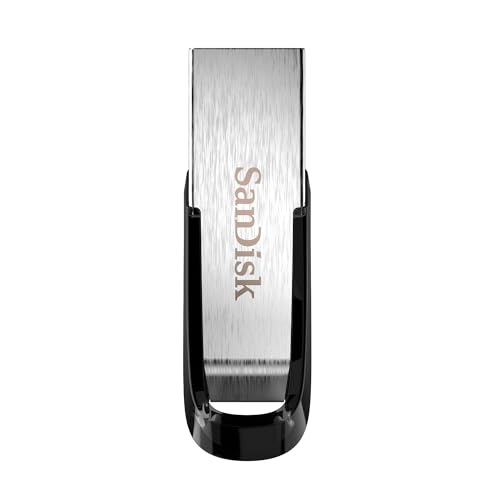
- High-speed USB 3.0 performance of up to 150MB/s(1) [(1) Write to drive up to 15x faster than standard USB 2.0 drives (4MB/s); varies by drive capacity. Up to 150MB/s read speed. USB 3.0 port required. Based on internal testing; performance may be lower depending on host device, usage conditions, and other factors; 1MB=1,000,000 bytes]
- Transfer a full-length movie in less than 30 seconds(2) [(2) Based on 1.2GB MPEG-4 video transfer with USB 3.0 host device. Results may vary based on host device, file attributes and other factors]
- Transfer to drive up to 15 times faster than standard USB 2.0 drives(1)
- Sleek, durable metal casing
- Easy-to-use password protection for your private files(3) [(3)Password protection uses 128-bit AES encryption and is supported by Windows 7, Windows 8, Windows 10, and Mac OS X v10.9 plus; Software download required for Mac, visit the SanDisk SecureAccess support page]

- USB-C 2-in-1 storage OTG: The Lexar JumpDrive Dual Drive D40E features USB Type-A and Type-C connectors in a slim, portable form factor for easy device compatibility
- Transfer speeds up to 100MB/s: Based on internal testing, performance may vary depending upon the host device, interface, and usage conditions. 1MB=1,000,000 bytes
- Plug and Play: Widely compatible with USB Type-C smartphones, tablets, laptops, Macs, and traditional Type-A devices, no software installation required. The 360° swivel design allows for easy switching between connectors without the hassle of losing a cap
- Durable & Compact: The Lexar D40E USB memory stick features a metal enclosure, withstands temperatures from 0° to 50° C (32°F to 122°F), and is lightweight at 26g with dimensions of 70.4 x 16.9 x 11.7mm
- Security & Warranty: Securely protects files using an advanced security software solution with 256-bit AES encryption. Backed by a Lexar 3-year limited warranty
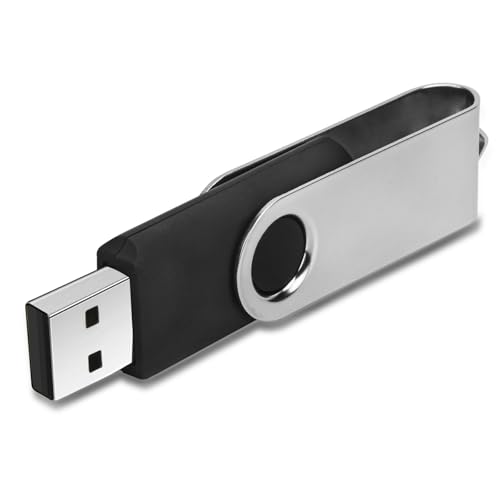
- 【16GB Flash Drive】USB flash drives with 16GB capacity, meet your needs of daily use on work, school, home and travelling for photos, music, videos, files storage and transfer. IMEASON thumb drives can be used to store different files, easy to data backup.
- 【Metal Swivel Cap Design】USB thumb drive is metal swivel cover provides extra protection for the usb thumbdrive connector, no usb drive cap to lose; keychain design makes it easier to carry without worrying lose it.
- 【Wide Compatibility】USB drive supports Windows 7/8/10/11 / Vista / XP / Unix / 2000 / ME / NT Linux and Mac OS, also Supports USB 2.0 and 1.1 ports. USB Stick support TV, desktop, notebook computer, car, audio and other device. The USB Memory Stick is your great data storage and transfer companion with traveling and working.
- 【Easy to use】usb memory stick is plug and play without any software installation. Just simply plug the Flashdrive into the port of your USB-compatible devices such as computer, laptop to start data storage or transmission.
- 【What You Get】16 GB USB Flash Drive Thumb Drive, The default format of the usb storage flash drive is FAT32.

- The durable, light-weight design of the Turbo Attaché 3 USB 3.0 Flash Drive is the essential mobile storage solution
- Perfect for transferring large files such as movies, videos, photos, music & documents
- Transfer speeds up to 10 times faster than standard USB 2.0 flash drives
- Convenient sliding collar, and cap-less design protects your content when not in use
- Compatible with most PC and Mac laptop and desktop computers with USB 3.0 ports

SEOCONTENT-START
CUSTOMER INFORMATION: The information in this bulletin is intended for use only by skilled technicians who have the proper tools, equipment,
and training to correctly and safely maintain your vehicle. These procedures should not be attempted by “do-it-yourselfers,” and you should not
assume this bulletin applies to your vehicle, or that your vehicle has the condition described. To determine whether this information applies, contact
an authorized Honda automobile dealer.
© 2024 American Honda Motor Co., Inc. – All Rights Reserved Page 1 of 14
Service Bulletin
24-081
May 31, 2024 Version 1
Safety Recall: 2018-20 Fit Audio Unit Improved Software Update
AFFECTED VEHICLES
Year
Model
Trim Level
VIN Range
2018–20
Fit (with key ignition switch ONLY)
Sport
Check the iN VIN status inquiry for eligibility.
BACKGROUND
Due to an improper hardware circuit configuration, if the battery state of charge drops below 9 volts during cranking this may cause logic and/or timing mismatch in the display audio unit resulting in a blank display condition. In certain situations, the rearview camera may not display when shifting to reverse, increasing the risk of a back-up collision or injury. This is noncompliant with Federal Motor Vehicle Safety Standards.
NOTE: Some vehicles in this action may have been repaired using the previous software from Service Bulletin 23-005 Safety Recall: 2018–20 Fit Audio Unit Software Update. This repair is required to fix a possible concern with the rear-view camera. All units in this campaign must receive the improved software.
CUSTOMER NOTIFICATION
Owners of affected vehicles will be sent a notification of this safety recall. Do an iN VIN status inquiry to verify eligibility.
Some vehicles affected by this campaign may be in your new or used vehicle inventory.
Failure to repair a vehicle subject to a recall or campaign may subject your dealership to claims or lawsuits from the customer or anyone else harmed as a result of such failure. To see if a vehicle in inventory is affected by this safety recall, do a VIN status inquiry before selling it.
CORRECTIVE ACTION
Update the audio unit system with the latest software.
NOTE: If you have USB drives with earlier versions of the software loaded, you will need to erase those USB drives.
WARRANTY CLAIM INFORMATION
Operation Number
Description
Flat Rate Time
Defect Code
Symptom Code
Template ID
Failed Part Number
0105A9
Update the audio unit system software.
0.3 hr
6AR00
TIQ00
A24081A
39171-T5R-A21
Skill Level: Repair Technician
Page 2 of 14
REPAIR PROCEDURE
1. Make sure there are no devices (USB flash drives, smartphones, etc.) connected to the USB port.
2. Connect a Midtronics GR8-1100P AST in Power Supply Mode, or the Midtronics DCA-8000 Dynamic Diagnostic Charging System in Reflash Mode, or the Associated Equipment Corporation ESS6100 100A Smart Charger in Power Supply Mode | DIAG+, connected directly to the vehicle’s 12-volt battery, and leave it connected during the entire update procedure to maintain constant voltage.
3. Apply the parking brake to keep the headlights off during the procedure.
4. Turn the ignition switch to ON (II).
• The disclaimer screen should display, then cycle to the home screen.
NOTE: If you see this screen, press and hold DAY/NIGHT and HOME at the same time to bypass this screen.
Page 3 of 14
5. From the HOME screen press and hold the following buttons, in the sequence shown, to enter diagnostic mode, (1)MENU > (2)DAY/NIGHT > (3)VOL AUDIO power knob.
NOTE:
• Press and hold the buttons in the exact numbered sequence shown to prevent unwanted system reboot.
• Make sure there are no devices (ISB flash drives, smartphones, etc.) installed in the USB port.
• Remove any gloves before doing the button push and hold sequence. Not doing so may cause the MENU button to not respond.
6. Select Detail Information & Settings.
NOTE:
• If the H logo appears when doing the (1)MENU > (2)DAY/NIGHT > (3)VOL AUDIO power knob push and hold sequence:
– Do not cycle the ignition switch.
– Wait 3 minutes and the unit will return to the disclaimer screen shown in step 4.
• If the screen goes blank when doing the (1)MENU > (2)DAY/NIGHT > (3)VOL AUDIO power knob push and hold sequence:
– Do not cycle the ignition switch.
– Press the DAY/NIGHT button to return to the HOME screen.
Page 4 of 14
7. Select the scroll down arrow.
8. Select Version.
9. Confirm the current software version.
10. Turn the ignition switch to OFF (0).
11. From your computer’s desktop, open Honda Firmware Downloader. Refer to job aid Honda Firmware Downloader for additional information. Make sure to use an empty USB flash drive the is formatted to FAT 32.
NOTE: If you have USB drives with earlier versions of the software you will need to erase the USB drives.
Page 5 of 14
12. In the Service Bulletin field, refer to the table below and enter the appropriate Honda Firmware Downloader Service Bulletin Number that is associated with the vehicle software version on the vehicle you are working on. Then, enter the vehicle’s VIN into the VIN field.
NOTE:
• This is very important as there are different update software versions depending on the original, or the first update audio unit software version.
• If you have USB drives with the first update software version loaded, you will need to erase the USB drives.
• The Service Bulletin and VIN fields must be entered in ALL CAPS.
VEHICLE ORIGINAL SOFTWARE VERSION
FIRST UPDATE SOFTWARE VERSION
HONDA FIRMWARE DOWNLOADER SERVICE BULLETIN NUMBER
LASTEST UPDATE SOFTWARE VERSION
FIT
2018
30.10.61
30.10.67
30.10.68
24F081
30.10.70
2019-2020
30.10.73
30.10.78
24G081
30.10.80
2019-2020
40.10.74
40.10.79
24H081
40.10.83
Page 6 of 14
13. Select the download icon.
NOTE: The software download may take up to 15 minutes depending on the size of the file.
14. Once the download is complete, return to the vehicle.
NOTE: If at any time during the update process a TIMEOUT err or UNDEF err message appears, check the USB flash drive for damage, or use a different one.
Page 7 of 14
15. Turn the ignition switch to ON (II).
NOTE:
• Make sure there are no devices (USB flash drives, smartphones, etc.) installed in the USB port.
• Connect a fully charged battery jumper to the vehicle and leave it connected during the entire update procedure to maintain constant voltage.
• Apply the parking brake to keep the headlights off during the procedure.
• The disclaimer screen should display, then cycle to the home screen.
NOTE: If you see this screen, press and hold DAY/NIGHT and HOME at the same time to bypass this screen.
Page 8 of 14
16. Select the HOME screen.
17. Insert the USB flash drive into the vehicle USB port.
NOTE Once the software update begins, do not remove the USB flash drive or the unit may be damaged.
Page 9 of 14
18. Software update pop up will display.
NOTE:
• Make sure the displayed current and new software versions are correct, then select Yes.
• If this pop up does not display, recheck the loaded software version on the USB flash drive.
• If the current and new software versions are the same, the system is already up to date.
• If the USB flash drive is removed before selecting Yes or No, an error message will display.
Page 10 of 14
19. The system will reboot and copy the software files. This process will take about 5 minutes and the system will reboot multiple times.
NOTE:
• The screens shown below will cycle and appear multiple times (approximately 4 to 5 times). Do not turn off the vehicle or remove the USB flash drive until the update is complete or the unit may be damaged.
• If power is lost during this update procedure, do not remove the USB flash drive. Turn the ignition switch to ON (II) and the H logo will appear for about 5 minutes. The unit will restart the update procedure on its own.
• If an error message appears, turn the ignition switch to OFF (0), remove the USB flash drive, then turn the ignition switch to ON (II) and continue from step 16.
• Refer to ADDITIONAL TROUBLESHOOTING: POTENTIAL RECOVERY METHODS at the end of this service bulletin if the unit is stuck on the H logo screen, or a blank screen appears for longer than 10 minutes.
20. Remove the USB flash drive and select Continue.
Page 11 of 14
21. The system will reboot to this screen for about 1 minute.
22. The Anti-theft System screen will display when the update is complete. Follow the screen prompts to proceed.
23. Press and hold the DAY/NIGHT and HOME buttons at the same time to bypass this screen.
Page 12 of 14
24. From the Home screen press and hold the following buttons, in the sequence shown, to enter diagnostic mode, (1)MENU > (2)DAY/NIGHT > (3)VOL AUDIO power knob.
NOTE:
• Remove any gloves before doing the button push and hold sequence. Not doing so may cause the MENU button to not respond.
• Press and hold the buttons in the exact numbered sequence shown to prevent an unwanted system reboot.
• Make sure there are no devices (USB flash drives, smartphones, etc.) connected to the USB port.
25. Select Detail Information & Settings.
• If the H logo appears when doing the (1) MENU > (2)DAY/NIGHT > (3)VOL AUDIO power knob push and hold sequence:
– Do not cycle the ignition switch.
– Wait 3 minutes and the unit will return to the disclaimer screen shown in step 15.
• If the screen goes blank when doing the (1)MENU > (2)DAY/NIGHT > (3)VOL AUDIO power knob push and hold sequence:
– Do not cycle the ignition switch.
– Press the DAY/NIGHT button to return to the HOME screen.
Page 13 of 14
26. Select the scroll down arrow.
27. Select Version.
28. Confirm the software update version.
Page 14 of 14
ADDITIONAL TROUBLESHOOTING: POTENTIAL RECOVERY METHODS
If the H logo screen or blank screen continue for more than 10 minutes, follow the processes below to attempt to recover the unit.
Process 1
1. Turn the ignition switch to OFF (0).
2. Remove the USB flash drive from the USB port.
3. Do a battery cable reset for 10 minutes.
4. Reconnect the battery and turn the ignition switch to ON (II).
NOTE: No USB devices can be installed in the USB port or audio unit may not recover.
5. Wait 5 minutes for the audio unit to recover. If the home screen appears, continue the update procedure from step 16.
6. If the unit is still stuck after 5 minutes, go to Process 2 below.
Process 2
1. Turn the ignition switch to OFF (0).
2. Insert the USB flash drive into the USB port.
3. Turn the ignition switch to ON (II).
4. Wait 5 minutes for the audio unit to recover. If the version update screen appears, continue the procedure from step 18.
5. If the audio unit does not recover, continue with normal troubleshooting procedures available in Service Information.
**************************************************************************************************************
Service Bulletin 23-005
May 31, 2024 Version 5
Safety Recall: 2018-20 Fit Audio Unit Software Update
This bulletin has been replaced by 24-081, dated May 31, 2024.
If you did the repair indicated in this bulletin on or before May 31, 2024, use the warranty information below to file a claim.
WARRANTY CLAIM INFORMATION
Operation Number
Description
Flat Rate Time
Defect Code
Symptom Code
Template ID
Failed Part Number
0105A9
Update the audio unit system software.
0.3 hr
6DW00
PD200
A24005A
39171-T5R-A21
Skill Level: Repair Technician
© 2024 American Honda Motor Co., Inc. – All Rights Reserved Page 1 of 1
CUSTOMER INFORMATION: The information in this bulletin is intended for use only by skilled technicians who have the proper tools, equipment, and training to correctly and safely maintain your vehicle. These procedures should not be attempted by “do-it-yourselfers,” and you should not assume this bulletin applies to your vehicle, or that your vehicle has the condition described. To determine whether this information applies, contact an authorized Honda automobile dealer.
**************************************************************************************************************
SEOCONTENT-END
This product presentation was made with AAWP plugin.