
Service Bulletin
A15-063
September 23, 2015
02404 Version 1
2016 CR-V: PDI of the Navigation System
AFFECTED VEHICLES
| Year | Model | Trim Level |
| 2016 | CR-V | All with Navigation |
INTRODUCTION
This bulletin covers the pre-delivery inspection (PDI), including testing, of the navigation system. It includes these topics:
For more information about this system, see these resources:
- Owner’s Guide – Besides the one that comes in the Owner Information Kit, this guide is also online. Select Search by Vehicle, select the vehicle, then enter keyword GUIDE.
- Navigation Manual – Besides the one that comes on the Owner’s CD, this manual is also online. Select Search by Vehicle, select the vehicle, then enter keywords NAVI MANUAL.
- Owner’s Manual – Besides the one that comes on the Owner’s CD, this manual is also online. Select Search by Vehicle, select the vehicle, then enter keywords OWN MANUAL.
- Online University – Log in and select SALES. Under Quick Links, select Course Catalog, then enter keyword NAVI in the search box.
CLAIM INFORMATION
The reimbursement time for the PDI of the navigation system is included as part of the regular PDI of the vehicle.
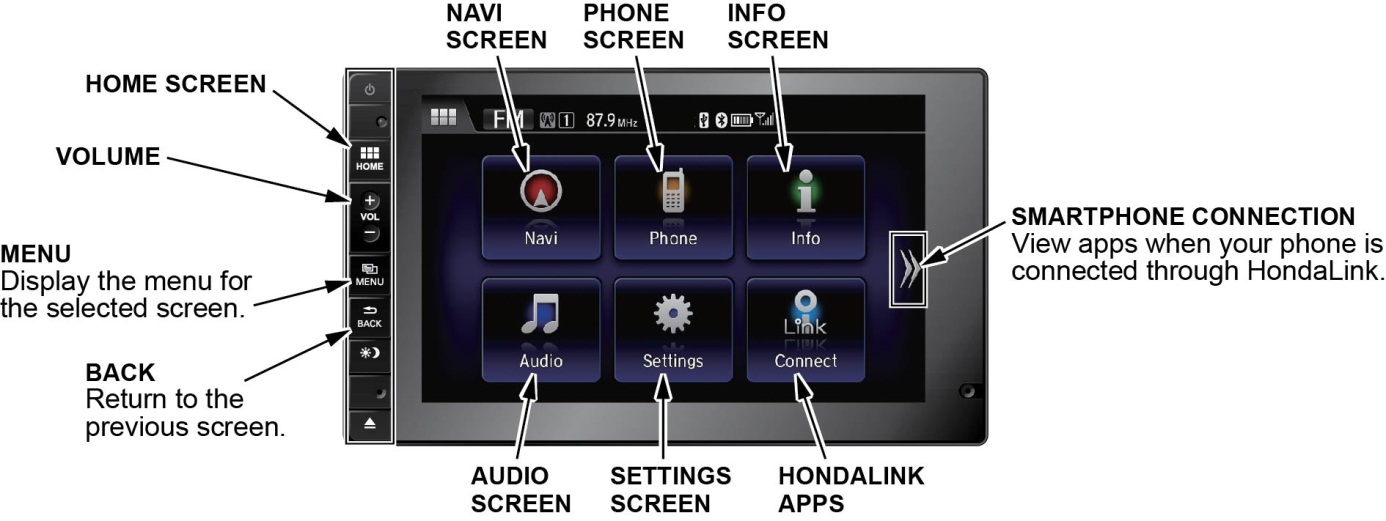
1. NAVIGATION SYSTEM CONTROLS
Use the following controls to operate the navigation system. For more information about them, see “Getting Started” in the navigation manual.
2. VOICE CONTROL SYSTEM
The navigation system features a voice control system that lets you work most of the navigation and audio controls with just your voice. To interact with the system, use the Talk and Hang-up/Back buttons. The microphones are at the lower left and right corners of the audio-navigation unit. This is the primary way to give commands to the system.
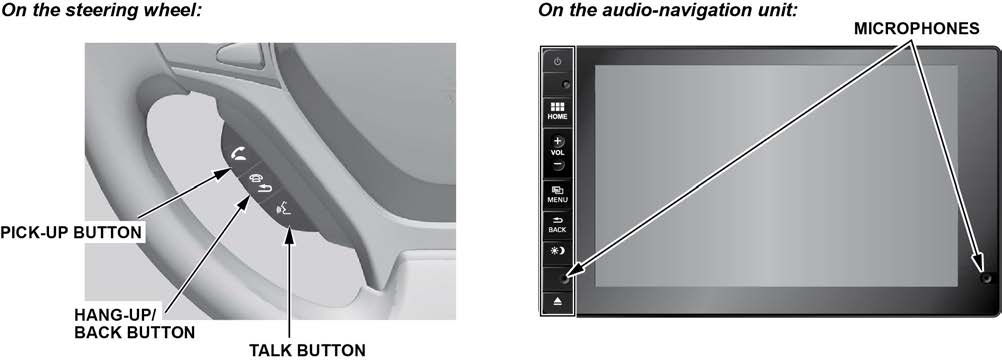
Talk button – To give a voice command, press and release this button, wait for the beep, then give the command.
NOTE: When the voice tutorial is turned on, you need to press and release the Talk button twice to give a command. Hang-up/Back button – Press and release this button to return to the previous screen. This button has the same function as the BACK button.
Microphones – Pick up your voice commands
NOTE: If the system does not understand your commands, see “Improving Voice Recognition” in the navigation manual.
3. NAVIGATION SYSTEM SETUP AT THE PDI
NOTE: The navigation system uses a flash memory module instead of a DVD or HDD.
The navigation system is basically ready to use when the vehicle is delivered to the dealership. The system has features to reduce the potential for driver distraction. Some touch screen menus are limited or unavailable (grayed out) while driving to encourage the use of voice commands for the navigation and audio systems.
Since the navigation system interfaces with other vehicle systems, it is important that all of the systems are initialized.
To initialize the navigation system, follow these steps:
- Do the regular PDI of the vehicle.
- You may see the factory In Line Diag screen below. If so, do the following. If not, go to step 3.
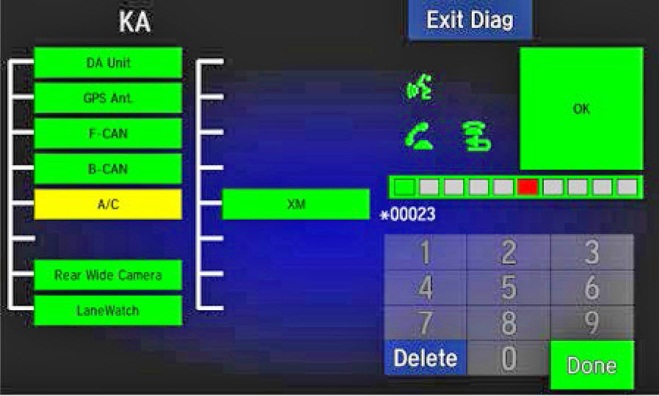
- Press and release the Talk, Pick-up, and Hang-up/Back buttons, then wait for all of the boxes to turn green. If any of them are red, troubleshoot the applicable system. See the service information for more information.
- Press and release the Talk button and, in a normal voice, say “Testing.” The mic level indicator must reach at least six bars.
- Select Exit Diag to exit the screen.
- Turn the ignition to OFF, then back to ON to make sure the In Line Diag screen does not reappear.
- Start the engine and park the vehicle in an open area away from trees, power lines, and tall buildings. Remove loose articles, cell phones, and electrical accessories near the GPS antenna. If you see this screen, press and hold the audio power button to bypass it.
- You will then see this screen, telling you the system is initializing (acquiring its location from the GPS satellites). Keep watching the screen.
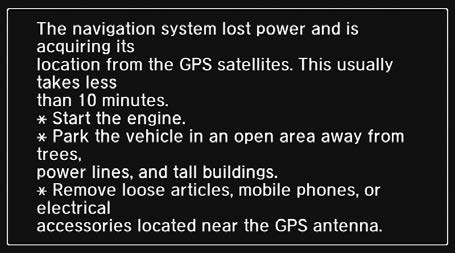
NOTE: Initialization averages about 10 minutes, but it can take as long as 45 minutes. If it completes within 10 minutes, the screen changes to the globe screen.
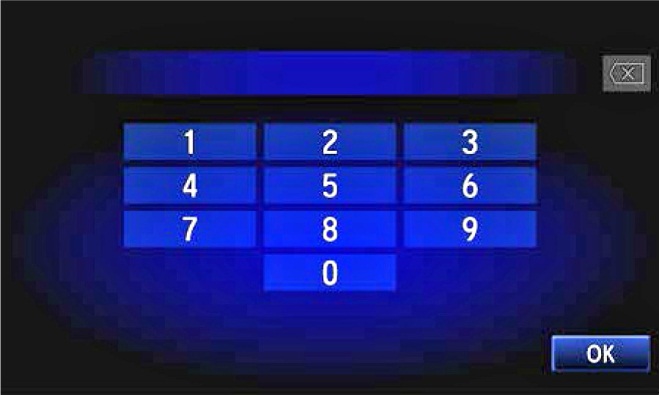
- If the system does not initialize within 10 minutes, a second screen (shown below) appears. The system is still initializing, but it will not automatically change to the globe screen when the initialization is complete. Do not follow the screen instructions right away. After 30 minutes, try restarting the engine to see if the system completed the initialization. If it did not, then follow the screen instructions.
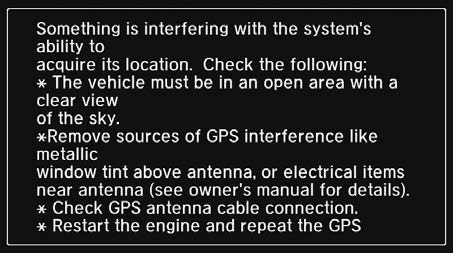
NOTE: The initialization screen may appear after battery voltage to the audio-navigation unit has been disconnected for more than 5 minutes. If that happens, follow the screen instructions. If you are still unable to get GPS initialization, do a search in the service information using keyword GPS.
- When initialization is complete, this screen appears. Select OK.
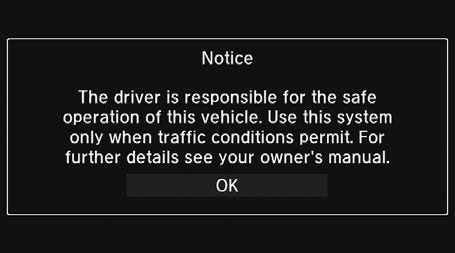
NOTE: Selecting OK is optional. The screen will change on its own.
- You will then see the map screen, but do not enter a destination yet. For the system to calculate a route, it must align the current location to a mapped road (map matching). This happens when you start driving.
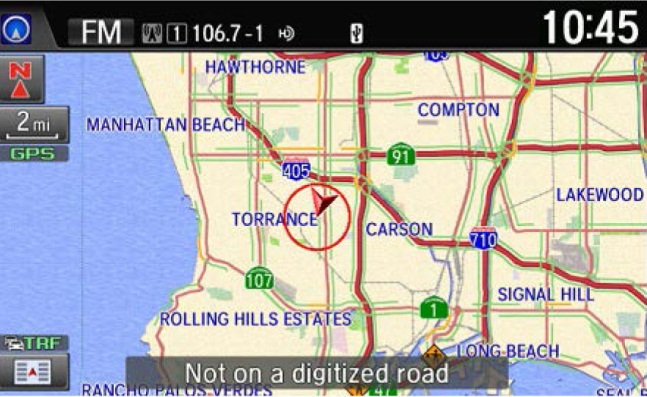
NOTE: If the map screen does not appear, select HOME, then Navi.
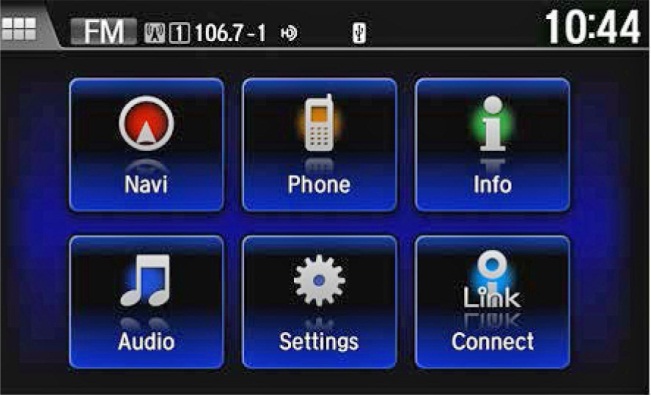
- Make sure the XM Satellite Radio dealer demo account is active by tuning to several channels within the full XM lineup. To see the full list of channels, go to siriusxm.com. If you get those channels, the demo account is fully active.
NOTE:
- For models with navigation, XM Satellite Radio is free to customers for the first 90 days. To keep getting coverage after that, they must subscribe by calling 800-852-9696 or going to siriusxm.com. They will need their eight-character radio ID (shown when tuned to channel 0) and a major credit card.
- Traffic Message Channel (TMC) is broadcast on the HD FM band and is free in available areas. See TRAFFIC MESSAGE CHANNEL (TMC) INFORMATION.
- Drive the vehicle at least a half-mile from your dealership and find a safe place to park. Then, select the map scale icon and select the 1/20 scale using the + and – icons.
- Make sure the vehicle position (VP) icon moves smoothly as you drive and does not jerk from one point to another. Also make sure the icon points in the direction the vehicle is traveling; it should not dog track or spin.
- After driving a few hundred feet, you should see the name of the road you are driving on at the bottom of the screen. The system is now map-matched.
NOTE: If the system fails to map-match after driving for more than a couple of miles on a displayed road, see the symptom troubleshooting in the service information.
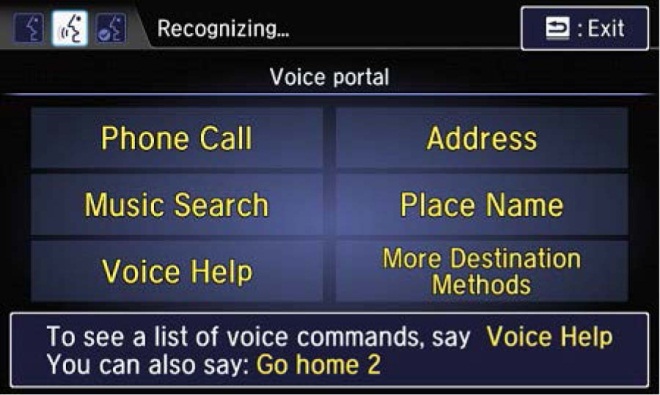
- With the map screen shown, press and release the Talk button.
NOTE: When the voice tutorial is turned on, you need to press the Talk button twice to give a command.
- You should then see the screen below. Wait and listen for the instructions. After you hear the beep, say “Find the nearest Honda dealer.” You should see a list of Honda dealers.
- Select your dealership from the list.
- The system will then transition to a destination confirmation screen. Select Set as Destination. The system then calculates a route and shows it as a blue line. If you are in a rural area with unverified roads, you may see a blue vector line or a blue/pink dotted line pointing in the direction of your destination.
- Follow the voice guidance back to your dealership. It should work even with the audio system turned off.
- Make sure the time shown by the system is correct; the system gets it from the GPS satellites. For areas that do not follow daylight saving time, you may have to adjust the time settings. Select HOME, Settings, and Info. In the Info settings screen, select Clock Adjustment to adjust the time.
NOTE: If your dealership is near a time zone boundary, set Auto Time Zone to OFF in the Info Settings screen. The clock then keeps the home time if the customer routinely drives across the time zone boundary.
- Press the Display Mode button to ensure the display changes between the Day, Night, and OFF modes.
- Select HOME, Settings, and System. Under All tab, select Volume to adjust the volume. Also under All tab, select Display settings to adjust Brightness, Contrast, and Black Level. Once adjusted, select OK to exit.
- Select Home, then Navi. If needed, clean the screen with a soft, damp cloth. You may use a mild cleaner made for eye glasses or computer screens, but avoid using harsher chemicals, shop towels, paper towels, or tissues; they can damage the screen.
- If your dealership is in an area that has traffic incident or traffic flow data available [see TRAFFIC MESSAGE CHANNEL (TMC) INFORMATION], do this:
- Select the map scale icon, then select between the 1/20- to 5-mile scales using the + and – icons.
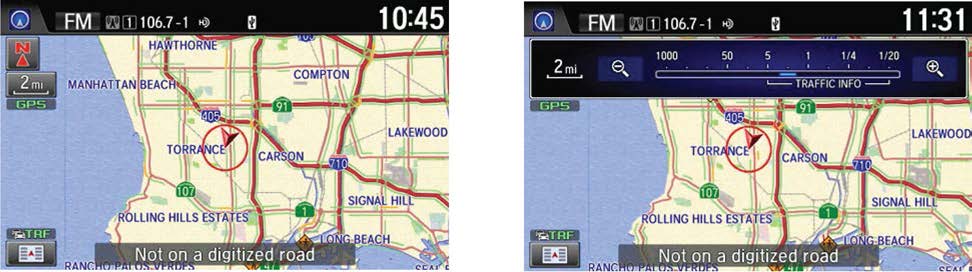
- Scroll and center on the downtown area of your city. If your metro area has traffic flow data, freeways and other main roads should show this data as red, yellow, or green lines in one or both directions.
- You may see small diamond-shaped traffic incident icons. If so, select an icon. The system will scroll over to that icon and you will see the screen below. Select the traffic incident icon from the menu on the right side of the screen and you will see its details.
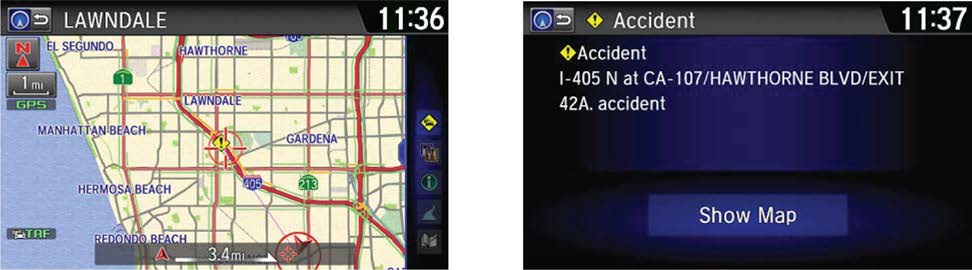
- Partially shown traffic data does not mean a problem with the navigation system. Traffic flow and density varies from day to day and from one road to another. If your area has traffic, but you cannot see it on the screen, do a search in the service information using keyword TRAFFIC.
- Traffic information from the provider is sometimes inaccurate. Traffic is only available where HD radio is broadcast.
- Traffic Message Channel (TMC) is broadcast on the HD FM band and is free in available areas. See TRAFFIC MESSAGE CHANNEL (TMC) INFORMATION.
4. TROUBLESHOOTING
If you think you found any problems with the navigation system during the PDI or after installing replacement parts to repair it, see “System Limitations” and “Database Limitations” in the navigation manual. This helps you to avoid replacing parts when the issue may be a system characteristic.
5. MAP COVERAGE AREAS
The map database covers the United States, Puerto Rico, the U.S. Virgin Islands, and Canada. The map coverage for the U.S. contains accurately mapped (verified) metropolitan areas and less accurate (unverified) rural coverage. In Canada, the database covers major metropolitan areas and major roads connecting them. For more coverage information, go to www.hondanavi.com.
For a list of current detailed coverage areas by country and state/province, see the navigation manual or go to www.hondanavi.com. Online, select the Model and Year, Map Coverage, then Map Coverage Details.
6. HAWAII SYSTEM SETUP
The navigation system comes with map information for the entire United States, including Hawaii. Unlike previous models, a customer does not need to change the navigation settings when relocating to or from Hawaii.
NOTE: XM radio is not available in Hawaii.
7. TRAFFIC MESSAGE CHANNEL (TMC) INFORMATION
TMC is available in many metropolitan areas and uses information broadcast on the HD FM band. Go to https://automobiles.honda.com/traffic to see if your area has TMC. The amount and type of coverage varies. For more information about traffic incidents and traffic flow, see “Map Screen Legend” in the owner’s guide.
8. PANDORA® INTERFACE
Customers can stream Pandora through the audio system. Customers need to pair their Honda-approved phones to Bluetooth® HandsFreeLink® (HFL). To find an approved phone that supports streaming Pandora, go to handsfreelink.honda.com.
NOTE:
- You must download the Pandora app from the Apple/Android store.
- You can connect an iPhone using either Bluetooth or USB. For Android and BlackBerry phones, you must use Bluetooth.
- If you cannot play Pandora through the audio system, it may be streaming through Bluetooth Make sure you select Pandora as the audio source.
- You may see a pop-up on the phone asking you to allow access for the app to be launched.
- Use the phone only when the vehicle is stopped.
For more information about playing Pandora through the audio system, see “Playing Internet Radio” in the owner’s manual.
9. SHORT MESSAGE SERVICE (SMS) TEXT MESSAGING AND E-MAIL
Customers who pair Honda-approved phones to HFL can get incoming text messages and e-mails. Standard message rates apply. As part of reducing the potential for driver distraction, this feature is limited while driving.
To find an approved phone that supports SMS, go to handsfreelink.honda.com.
For more information about text messages, see “Receiving a Text Message/Email” in the owner’s manual.
10. SIRI® EYES FREE MODE
Customers who pair a Honda-approved, Siri-equipped iPhone to HFL can enjoy the convenience of Siri through HFL. To activate Siri, press and hold the Talk button on the steering wheel until you see the Smartphone screen and hear the Siri tone. Then, give your Siri command. If you press and release the Talk button, the standard voice recognition system is activated. To cancel a command, press and release the Hang-up/Back button.
NOTES:
- Any requests that include visual feedback from Siri are not shown on the screen.
- Certain commands rely on the iPhone’s features and existing apps.
- To hear turn-by-turn iPhone directions or songs through HFL, set the audio system to Bluetooth Audio.
11. ORDERING NAVIGATION UPDATE SOFTWARE
You can order navigation map updates online at www.hondanavi.com. Under Find Updates, use the pull-down menu to select the vehicle model and year. You can also call the Honda Navigation Center at 888-291-4675. Both methods require a major credit card.
No products found.

- Foursquare - Search millions of additional new and popular restaurants, shops and more with Foursquare
- Garmin Real Directions - Garmin Real Directions guides like a friend using landmarks and traffic lights
- Direct Access - Simplifies navigating to select complex destinations, like malls and airports
- Backup Camera Compatible - Take the worry out of reversing with the BC 30 Wireless Backup Camera (purchased separately)3
- Free lifetime Map updates

- Vehicle dash mount for use on any stable surface
- Securely holds your GPS in vehicle.Keep your device in easy sight with this portable friction mount, and then remove it from your vehicle when you arrive at your destination
- Does not slide or detach while vehicle is in motion
- Adjustable to position GPS in a variety of angles
- Ships in Certified Frustration-Free Packaging

This product presentation was made with AAWP plugin.